
 English
 Spanish
Block Adult Content on Your Child’s Phone: 3 Easy Ways
Posted in Parental Control by admin
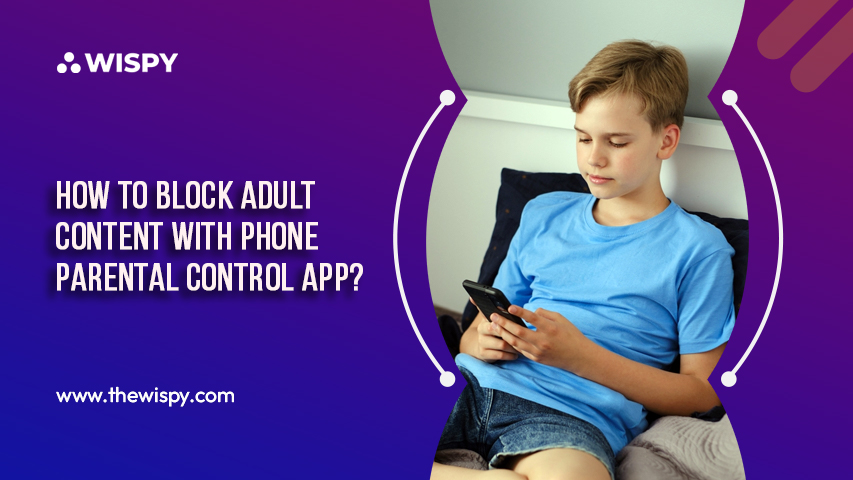
How to Block Adult Content on Your Child’s Phone
Is your child exposed to inappropriate material online? If so, you can block adult content on an Android phone in a few minutes. Parents worldwide worry about their kids’ online safety, and the right phone parental control app can make a real difference. In this guide, you’ll learn three practical methods, from free built-in settings to full-featured apps.
Why Do You Need Parental Controls?
The internet gives teens and tweens access to almost everything. Unfortunately, that includes pornography, adult chat rooms, and online sexting, and a single wrong click can lead a child there. Moreover, research suggests that excessive screen time can affect attention and sleep, and porn addiction among teens is a growing concern for many families. Cell phone addiction can also contribute to study problems.
Is it legal for parents to set limits? In general, parents are responsible for their minor children’s devices and can set restrictions. Laws differ by country and region, so check your local rules if you’re unsure.
Three Ways to Block Adult Content on Android
You can filter adult content in these ways:
- Google Play Store restrictions
- Google SafeSearch
- A parental control app
Let’s look at each one.
Method 1: Use Google Play Store Restrictions
Google Play hosts countless apps, including dating and adult apps. Fortunately, its built-in parental controls let you filter apps, games, and media by age rating. As a result, this works much like a basic parental control tool at no cost.
Follow these steps (menu names may vary slightly by version):
- Open the Play Store on your child’s device.
- Tap the profile icon, then choose Settings.
- Open Family, then tap Parental controls.
- Switch parental controls on.
- Create a PIN your child doesn’t know.
- Choose the maximum age rating for apps, games, movies, and other content.
Note: Keep the PIN private. Otherwise, your child can simply switch the restrictions off. For more detail, see Google’s official guide to Play parental controls.
Method 2: Turn On SafeSearch
Search engines can surface explicit websites, even from innocent queries. Therefore, enabling SafeSearch is a helpful second layer. It filters explicit results in Google Search, although it doesn’t block sites that a child visits directly.
To turn it on:
- Open Google Search settings in your child’s browser or Google app.
- Find SafeSearch (sometimes labeled “Explicit result filters”).
- Switch the filter on.
Google explains the setting in its SafeSearch help page. If your child has a supervised Google account, Google Family Link can keep SafeSearch locked on.
Keep in mind that SafeSearch only covers Google. Consequently, it won’t filter other browsers, apps, or social media.
Method 3: Use a Transparent Parental Control App
For stronger protection, a dedicated app is usually the best solution. These tools block adult websites across browsers, restrict apps, and set screen-time limits. In addition, the best ones work openly, so your child knows the rules and why they exist.
What Features Should You Look For?
Before choosing an app, compare these features:
- Web filtering: blocks adult websites in all browsers.
- App blocking and approvals: restricts dating apps, violent games, and other unsuitable apps.
- Screen-time limits: sets daily limits and bedtime schedules.
- Location sharing: shows where your child is, with their knowledge.
- Geofencing: sends alerts when your child arrives at or leaves places like school.
- Concern alerts: flags risky messages or searches without exposing every private chat.
For a deeper introduction, read our guide on what a parental control app is and why you need one.
Trusted Options to Consider
- Google Family Link: free, with app approvals, time limits, and location.
- Qustodio: strong web filtering across many device types.
- Bark: alert-based monitoring that respects everyday privacy.
- Apple Screen Time: built in for iPhone and iPad families.
Prices and features change often, so check each provider’s site for current plans and free trials.
How to Set Up a Parental Control App
- Choose an app that supports your child’s device.
- Create a parent account.
- Talk with your child, then install the app on their phone together.
- Set content filters, app limits, and screen-time schedules.
- Review reports from your parent dashboard and adjust the rules as your child grows.
Tips for Success
Software works best alongside conversation. First, explain why you’re setting limits. Next, agree on rules together so they feel fair. Finally, check in regularly, because open communication protects kids better than any filter. Common Sense Media offers age-based advice for these talks.
Final Thoughts
You can block adult content by combining Google Play restrictions, SafeSearch, and a reliable parental control app. Start with the free options, then add an app if you need broader coverage. Above all, keep your child involved so that online safety feels like teamwork.
Frequently Asked Questions
Can I control my child’s phone for free?
Yes. Google Play restrictions, SafeSearch, and Google Family Link are all free. However, paid apps usually add broader web filtering and detailed reports.
Can I lock my child’s phone remotely?
Yes. With Google Family Link, you can lock a supervised device remotely. Many parental control apps offer a similar feature.
Can parents see where their kids are?
Yes. Family Link, Life360, and most parental control apps share location. For best results, tell your child that location sharing is on.
How can I find out what my child searches for?
Talk with them first. Beyond that, a transparent app with activity reports or concern alerts can show browsing trends, and you can set rules together based on what you see.
Which app is best for controlling a child’s phone?
It depends on your family. Family Link suits budget-conscious Android households, while Qustodio and Bark offer more features. Compare options and try free trials.

Related Posts
Parental Controls on Your Child’s Phone: Easy Guide (2026)
Setting up parental controls on your child's phone is one...
Read More
How to Enable YouTube and Google Restriction Mode?
YouTube and Google restricted mode helps parents filter inappropriate content...
Read More
Is It Possible to Turn Off Childs Cell Phone or Tablet Remotely?
Can You Turn Off Your Child's Phone or Tablet Remotely?...
Read More
Install TheWiSpy Monitor App Now and Start Exploring Your Kid’s and Employee’s Digital Space
- Protect Your Kids
- Secure Your Business
- Backup Personal Data

 Affiliate Login
 Spanish