
 English
 Spanish
Parental Controls on Your Child’s Phone: Easy Guide (2026)
Posted in Parental Control by admin
Setting up parental controls on your child’s phone is one of the best ways to keep them safe online, yet many parents don’t know where to start. Nowadays, almost every kid knows how to operate a cell phone, and smart devices have become so common that parents often overlook the online dangers they bring.
Admittedly, mobile phones help kids explore and learn about the world. However, unsupervised access can open the door to cyber threats. Although there are several ways to limit screen time, the most efficient one is a parental control app. In this guide, you will learn how to enable parental controls on your child’s phone using both built-in Android settings and a monitoring app.
So, let’s get started.
Why You Need Parental Controls on Your Child’s Phone

Parental controls are digital tools that help parents manage their kids’ online space. Online threats are rising, including cyberbullying, predation, data breaches, and malware attacks. Therefore, aware parents install parental controls on their child’s phone to monitor mobile activity. In addition, these tools let them track screen time, downloaded apps, and browsing history. For more on keeping kids safe online, see the FTC’s guide to protecting your child’s privacy online.
Modern problems call for modern solutions, and parental control software is now one of the most effective ways to manage children’s screen usage. Before we look at how to install a parental control app, however, let’s see which options exist without one.
How to Set Up Parental Controls on Your Child’s Phone without an App

Smart devices have become smarter over time. As a result, many phones now include built-in features that let parents limit device usage. Here are two options that need no extra app:
- Create a restricted profile on Android devices
- Set parental controls on Google Play Store
Let’s go through each one.
How to Create a Restricted Profile for Parental Controls on Your Child’s Phone
Android devices run on Google accounts, and Android lets you create multiple profiles on one device. Consequently, you can add parental controls on your child’s phone by setting up a restricted profile that hides inappropriate content. Note that some newer Android versions have removed Restricted Profiles. If you don’t see the option, Google Family Link offers similar controls.
Follow these steps to create a restricted profile:
- First, open the Settings menu on your kid’s phone.
- Next, scroll down and tap “Users”.
- Then tap “Add User or Profile”.
- After that, select “Restricted Profile”.
- Set a PIN or password for the profile. Only people who know it can change the profile’s settings.
- Name the profile and tap OK.
- Next, review the list of installed apps. Turn each app on or off, because only the apps you allow will appear on your child’s screen.
- Finally, exit Settings and lock the device. Then select your kid’s profile on the lock screen, and only the allowed apps will show in the app drawer.
How to Set Parental Controls on Your Child’s Phone via Google Play Store
Google also offers built-in parental controls for the Play Store. This matters because the store holds apps of every genre, including violent or adult ones. Moreover, kids can easily make in-app purchases without a second thought. You can read Google’s own instructions on the Google Play Help page, or follow these steps:
- Launch Google Play Store on your child’s device.
- Then tap the profile icon or menu icon and open Settings.
- Next, find “Family” or “User Controls” and go to Parental Controls.
- Toggle Parental Controls on.
- When prompted, set and confirm a 4-digit PIN, then tap OK.
- After that, open “Apps and Games”.
- Finally, select the maturity rating that suits your child’s age, so Google only shows suitable apps and games.
Despite these useful features, built-in options are limited. Fortunately, parental control apps fill that gap.
3 Easy Steps to Install Parental Controls on Your Child’s Phone

Installing parental control software is not as hard as it seems. All you need is a reliable app. Here, we describe the process using TheWiSpy so you can see how it works.
1- Purchase the License
First, visit the official website, https://www.thewispy.com/. There, you can buy a subscription. Since multiple pricing plans are available, choose the one that fits your needs.
2- Install TheWiSpy
Once you purchase the license, the provider emails you a download URL, an activation key, and dashboard login credentials. Then open the download URL on your child’s device and install the app.
3- Open the Dashboard and Start Monitoring
After installation, the tricky part is over. Next, open the TheWiSpy dashboard in any web browser and log in. From there, you can view the activity on your child’s device. In addition, you can block inappropriate apps and games, limit screen time, and set geo-fenced safe and unsafe zones.
So, which option do you think is best for managing your kid’s online space?
Final Words on Parental Controls on Your Child’s Phone
Cell phones are now a necessity. Even so, managing children’s devices is just as important. Because so many online dangers target young users, it is essential to stay aware of your child’s digital world. Therefore, parents turn to parental control apps to keep harmful content off their kids’ screens.
So, saddle up and turn on parental controls on your child’s phone today to create a safer online environment for your kids.
FAQs
How can I turn off my kid’s phone at night or anytime?
To lock or turn off your kid’s phone from anywhere, use a parental control app that works remotely. First, install TheWiSpy on your child’s phone. After that, you can lock the device or schedule downtime from your dashboard.
What is an easy way to control a child’s phone?
The easiest way is to install a parental control app on their phone. With it, you can set boundaries for teens and tweens and manage screen time. In addition, you can monitor online activity and check their location. TheWiSpy also offers call recording and microphone listening for broader protection, but check your local laws and talk to your child about monitoring.
How can I monitor a kid’s phone remotely?
Install a parental control app on your child’s phone. Besides tracking activity, you can manage social media use and web history. As a result, you can better protect them from cyberbullying and online predators.
Is it safe to use a free parental control app?
Many free options exist, but they usually offer limited features. Moreover, some free apps collect user data. Therefore, check an app’s privacy policy carefully before installing it, especially if you care about protecting private and financial information.
How can I see everything on my child’s phone?
Use a parental control app such as TheWiSpy. First, install it on the phone. Then log in to your parent account from any device, and you can monitor activity easily.

Related Posts
Mirror Your Child’s Phone: A Safe Guide
How to Mirror Your Child's Phone to Yours: A Safe...
Read More
Block Adult Content on Your Child’s Phone: 3 Easy Ways
How to Block Adult Content on Your Child’s Phone Is...
Read More
How to Enable YouTube and Google Restriction Mode?
YouTube and Google restricted mode helps parents filter inappropriate content...
Read More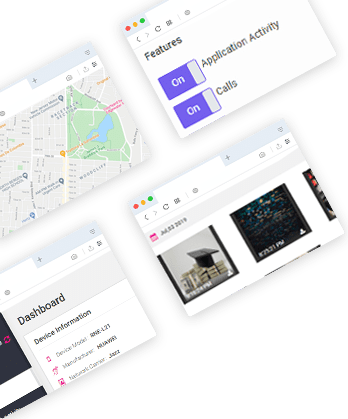
Install TheWiSpy Monitor App Now and Start Exploring Your Kid’s and Employee’s Digital Space
- Protect Your Kids
- Secure Your Business
- Backup Personal Data
 Affiliate Login

 Spanish