
 English
 Spanish
Roblox Safety for Parents: 8 Settings to Turn On Today
Posted in Uncategorized by admin
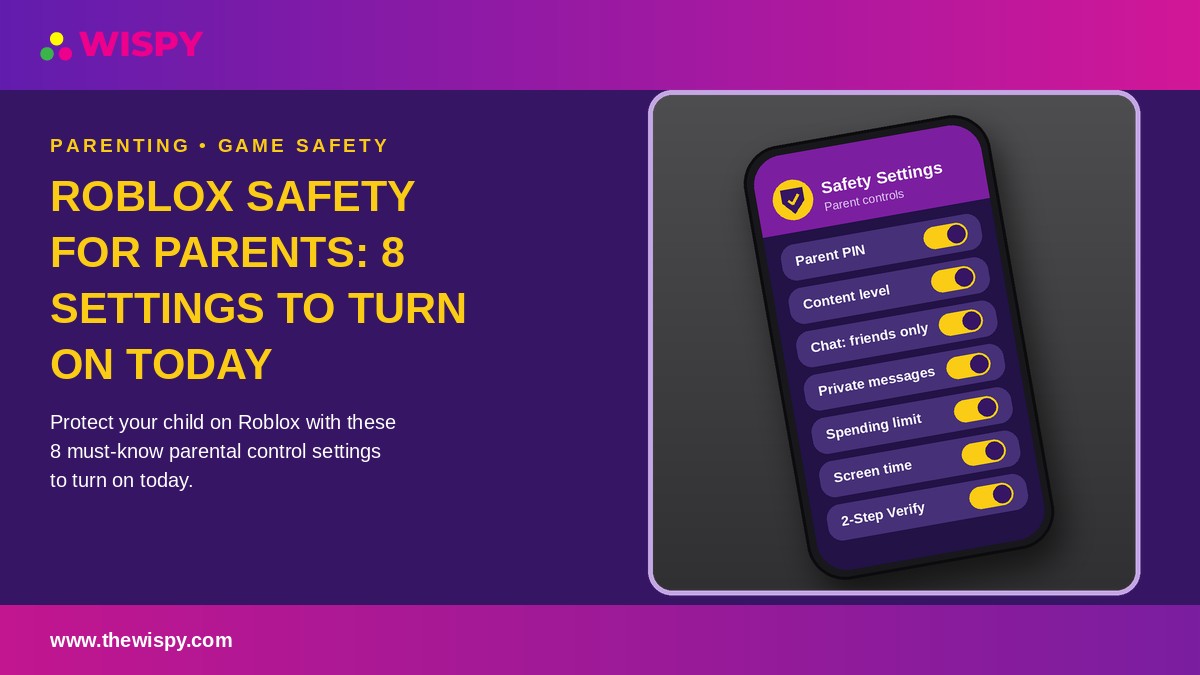
Your child runs over with a tablet and announces that every friend they have is playing Roblox. It sounds harmless, and most of the time it is. However, Roblox is also an open platform where strangers can chat, millions of player-made games vary wildly in quality, and purchases are one tap away. That is why Roblox safety for parents starts with setup, not with a flat "no."
Fortunately, Roblox offers parental controls that make a real difference. In this guide, you will learn the main risks, the 8 settings to turn on today, and how to add extra layers of protection at home. Because menus change from time to time, double-check each step in the app or on Roblox’s parent hub.
Why Roblox Safety for Parents Matters More Than Ever
Roblox is not a single game. Instead, it is a huge platform where players build and share their own games, which Roblox calls "experiences." Some are simple obstacle courses, while others are social hangouts with open voice and text chat.
This mix is exactly why Roblox appeals to children. They can create, play with friends, and customize an avatar all in one place. In addition, the platform is free to start, so kids often download it long before parents think about safety.
Nevertheless, the same openness creates risk. Because anyone can publish an experience, quality and moderation are uneven. Therefore, Roblox safety for parents depends on a few smart settings and regular conversations, not on blind trust in the platform.
Roblox Safety for Parents: The Main Risks to Know
Before changing any settings, it helps to know what you are protecting your child from. Here are the most common concerns.
- Contact from strangers. Chat features let players talk to people they do not know. Most conversations are harmless, but bad actors do try to befriend children.
- Inappropriate experiences. Moderation is not perfect, so some player-made games contain mature themes or suggestive content.
- Scams and Robux fraud. Scammers promise free Robux in exchange for passwords or personal details. As a result, accounts get stolen every day.
- Unplanned spending. Because Robux is the in-game currency, children can spend real money quickly, especially if a card is saved on the device.
- Cyberbullying. Competitive games and group chats can turn unkind fast. For help spotting this, read the guidance at StopBullying.gov.
- Moving to other apps. Sometimes a stranger asks a child to continue the chat on another platform, where there is less oversight.
- Too much screen time. Finally, Roblox is designed to keep players engaged, so sessions can stretch late into the night.
The good news is that most of these risks can be reduced with the settings below.
Roblox Safety for Parents: 8 Settings to Turn On Today
Work through the list in order. It takes about 15 minutes in total. Meanwhile, ask your child to sit with you so they understand why each rule exists.
Setting 1: Link Your Account and Verify the Birthday
First, make sure your child’s account uses their real birthday, because Roblox applies age-based protections automatically. Then connect your own parent account to theirs through Roblox’s Parental Controls. Once linked, you can manage settings and see activity summaries from your own device. Without this link, most of the other settings are easy for a child to change.
Setting 2: Add a Parent PIN
Next, set a Parent PIN in the Parental Controls menu. This PIN locks your settings, so your child cannot quietly undo them. Choose four digits that are not a birthday, and keep them private. Otherwise, every other safeguard on this list can disappear in seconds.
Setting 3: Choose Age-Appropriate Content Levels
Roblox labels experiences by content maturity, ranging from minimal to restricted. Therefore, pick the highest level that fits your child’s age and maturity. For younger children, choose the most conservative option. For teens, review the labels together and explain why some experiences stay off-limits. In addition, check whether your account has an "Account Restrictions" option, which limits play to experiences Roblox has curated.
Setting 4: Limit Chat, a Key Part of Roblox Safety for Parents
Chat is the single most important setting for Roblox safety for parents. In the communication settings, decide who can chat with your child: no one, friends only, or a wider group. For most children under 13, the safest choice is friends only or no chat at all. Furthermore, Roblox has been adding age checks for chat features, so you may be asked to confirm your child’s age.
Setting 5: Control Messages, Invites, and Who Can Join
Now tighten the privacy settings. Specifically, limit who can send private messages, who can invite your child to private servers, and who can join them in a game. Setting these to friends only (or off) stops strangers from pulling a child into a private space. As a result, unwanted contact becomes much less likely.
Setting 6: Set Spending Limits and Purchase Alerts
In Parental Controls, set a monthly spending limit and turn on purchase notifications. Also, remove any saved payment methods from the device. Because Robux gift cards are popular presents, tell relatives about the limit too. Consequently, you will never face a surprise bill after a weekend of gaming.
Setting 7: Set Screen Time Limits
Roblox lets parents set daily time limits for linked accounts. Choose a limit that matches your family routine, for example one hour on school nights and two on weekends. In addition, use your phone or console’s own screen time tools, since a child can simply switch devices. Then agree on "off" times, such as no play during meals or after bedtime.
Setting 8: Turn On 2-Step Verification and Review Friends
Finally, protect the account itself. Turn on 2-Step Verification, use a long and unique password, and never share login details with friends. Then review the friends list together every month. If your child cannot say who a friend is in real life, talk about it calmly and consider removing or blocking that person.
Everyday Roblox Safety for Parents Beyond the Settings
Settings are only half the picture. Even the best controls cannot replace a child who feels safe talking to you. Therefore, build a few habits.
- Play together. Join a game for 20 minutes. You will quickly see what your child enjoys and what chat looks like.
- Keep devices in shared spaces. For example, let younger kids play in the living room instead of behind a closed door.
- Teach the "block and tell" rule. If anyone asks for personal information, photos, or a move to another app, your child should block the player, report them, and tell you right away.
- Promise a calm reaction. Children hide problems when they fear losing their device. Instead, reward them for coming forward.
- Check in regularly. Ask what they built, who they played with, and whether anything felt strange.
For more guidance on rating and reviewing apps, Common Sense Media offers age ratings and parent reviews.
Add Extra Roblox Safety for Parents With a Monitoring App
Roblox’s built-in tools are useful, but they only cover Roblox. However, children use many apps, and risky conversations often move elsewhere. For that reason, many families add a parental control app to strengthen Roblox safety for parents across the whole device.
For example, app monitoring shows which apps your child installs and how long they use each one, so you can spot a new chat app quickly. Likewise, tools that monitor browser history reveal which gaming and chat websites your child visits. Because many Roblox friendships continue on other platforms, social media monitoring is also worth considering. In addition, 24/7 instant alerts can notify you about unusual activity, so you can start a conversation early.
If your child plays on an Android phone, the Android monitoring app is a good place to begin. To compare options first, see our guide to the best parental control apps. You can also learn how TheWiSpy works, check device compatibility, or view the pricing options.
Monitoring works best when your child knows about it. Therefore, explain that the goal is safety, not spying, and use these tools only to supervise your own minor children, in line with the law. Also remember that no software can see every private message inside every app.
If your child also uses AI companions, our guide to AI chatbot parental controls explains what to watch for.
What to Do If Something Goes Wrong on Roblox
Stay calm if you discover a problem. Your reaction decides whether your child keeps talking to you.
- Listen first. Ask what happened before you react.
- Save evidence, such as screenshots of messages and usernames.
- Block and report the player inside Roblox. Roblox’s help center explains how.
- Report serious cases. If an adult asks a child for photos or tries to meet them, contact the NCMEC CyberTipline and local police.
- Secure the account. Change the password and review recent purchases.
Roblox Safety for Parents: Frequently Asked Questions
Is Roblox safe for kids?
It can be, with the right setup. Roblox has safety features, but no platform is risk-free. Consequently, parental controls, limited chat, and regular conversations matter far more than the platform’s reputation.
What is the best age for Roblox?
Many children start around 8 to 10, although Roblox allows younger players with restrictions. In general, younger kids should use the strictest content and chat settings, and an adult should be nearby.
Can strangers message my child on Roblox?
They can if privacy settings are open. However, setting messages, invites, and chat to friends only (or off) greatly reduces the chance of unwanted contact.
How do I set up Roblox safety for parents on a phone or console?
Start in the Roblox app or website on the child’s account, then link your parent account and add a PIN. After that, repeat the key limits in your device’s own settings, since consoles and phones have separate controls.
Should I let my child play Roblox with friends only?
For most younger children, yes. Playing with real-life friends keeps conversations familiar. Furthermore, you can loosen the rules gradually as your child shows good judgment.
Final Thoughts on Roblox Safety for Parents
Roblox can be a creative, social place for children, but it needs thoughtful supervision. In summary, link your accounts, add a PIN, limit content and chat, control spending and screen time, and secure the login. Then keep talking with your child as they grow.
With these steps, Roblox safety for parents becomes a routine, not a battle. Ready for broader protection? Explore TheWiSpy’s parental control features and start building a safer digital routine today.
Useful resources for parents
- Roblox Parent Hub: official guidance and setup information
- Roblox Help Center: step-by-step support articles
- Common Sense Media: age ratings and parent reviews
- StopBullying.gov: how to recognize and respond to bullying
- NCMEC CyberTipline: report online exploitation
Disclaimer: This article is for general information. Roblox changes its settings and menus often, so confirm each step in the app. Monitoring tools should only be used lawfully and ethically to supervise your own minor children.

Related Posts
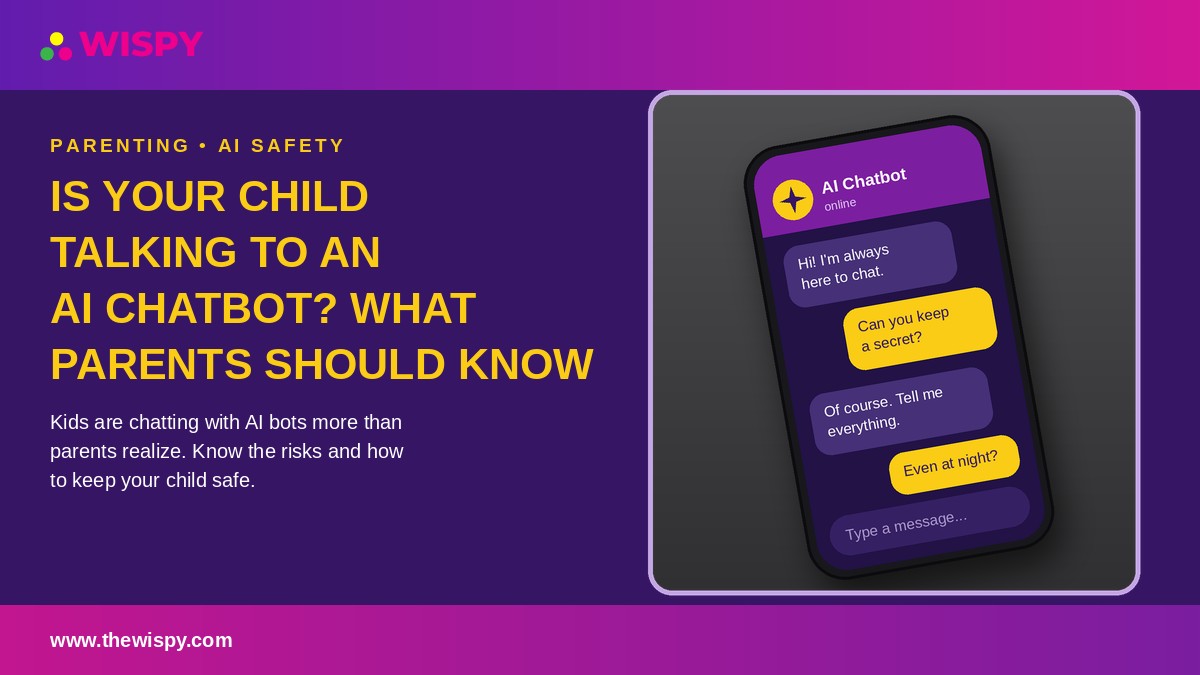
Is Your Child Talking to an AI Chatbot? What Parents Should Know
Your child is doing homework at the kitchen table, laughing...
Read More
Best Parental Control Apps Compared (2026)
Finding the best parental control apps for your family isn't...
Read More
Install TheWiSpy Monitor App Now and Start Exploring Your Kid’s and Employee’s Digital Space
- Protect Your Kids
- Secure Your Business
- Backup Personal Data
 Affiliate Login
 Spanish