
 English
 Spanish
Mirror Your Child’s Phone: A Safe Guide
Posted in Parental Control by admin
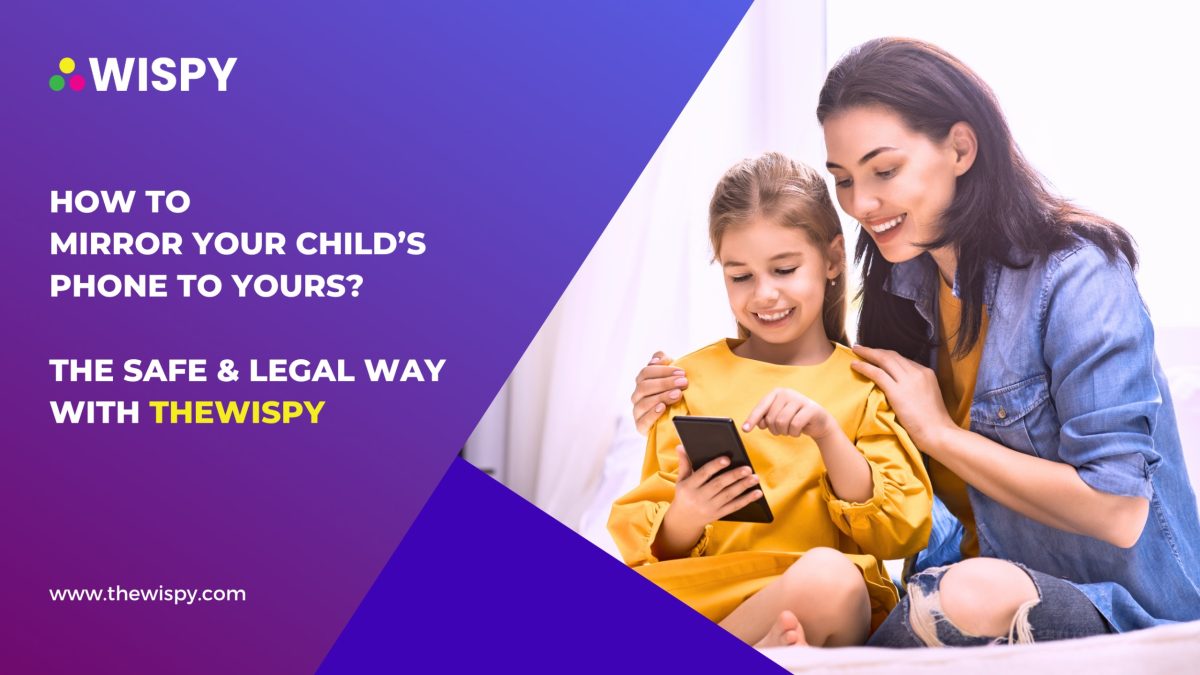
How to Mirror Your Child’s Phone to Yours: A Safe Guide
Children use smartphones to learn, play games, and connect with friends. However, the internet also exposes them to risks such as cyberbullying, scams, inappropriate content, and unwanted contact. Therefore, many parents want to understand how to mirror their child’s phone and supervise online activity responsibly.
Fortunately, you have several options. Built-in parental controls, family safety tools, and screen-sharing features can help you manage your child’s digital experience. The right choice depends on your child’s age, your device’s operating system, and the type of supervision you need.
In this guide, we’ll explain how phone mirroring works, which parental controls you can use, and how to protect your child’s privacy while keeping them safe online.
Why Do Parents Want to Mirror Their Child’s Phone?
Smartphones provide educational and social benefits. Nevertheless, unrestricted access can expose children to online risks.
For example, a child might receive messages from strangers, encounter cyberbullying, or share personal information without understanding the consequences. Consequently, parents often look for ways to supervise device use and encourage safer habits.
Here are some common reasons to consider parental controls:
- Online safety: Help children recognize suspicious messages, scams, and inappropriate contact.
- Screen-time management: Encourage a healthy balance between screen time, schoolwork, sleep, and outdoor activities.
- Cyberbullying prevention: Help children report harassment and block unwanted contacts.
- Content restrictions: Limit access to age-inappropriate websites, applications, and media.
- Location awareness: Use appropriate family safety features to help coordinate travel and check on a child’s whereabouts.
However, monitoring works best when parents combine suitable technology with open communication. Children should understand the rules and know how to ask for help when something makes them uncomfortable.
What Does It Mean to Mirror Your Child’s Phone?
Phone mirroring means displaying a device’s screen on another compatible device. For example, a parent might use screen sharing to help a child troubleshoot an app or complete a task.
However, screen mirroring differs from parental monitoring. A mirroring feature may display the current screen, while a parental control tool may manage screen time, filter websites, or report app usage.
Therefore, choose a tool based on your actual needs rather than assuming every app can access messages, location data, or other phone activity.
How to Mirror Your Child’s Phone Using Parental Controls
Several legitimate options can help parents supervise a child’s device. The best method depends on whether your child uses Android or an iPhone.
1. Use Google Family Link for Android Devices
Google Family Link helps parents manage eligible children’s Google accounts and Android devices. Depending on the device and account, it offers tools for screen-time limits, app approvals, and content restrictions.
To get started:
- Visit Google Family Link .
- Review the supported devices and family-account requirements.
- Follow Google’s setup instructions for your family.
- Configure app approvals, screen-time limits, and available content filters.
- Review the settings regularly as your child’s needs change.
Family Link does not mirror every screen or provide unrestricted access to private messages. Instead, it focuses on parental supervision and digital well-being.
2. Use Apple’s Screen Time and Family Sharing
If your child uses an iPhone, Apple’s Screen Time and Family Sharing features provide useful parental controls.
You can configure supported features to manage app limits, downtime, communication settings, and age-appropriate content restrictions.
Follow these steps:
- Open Settings on your Apple device.
- Set up Family Sharing if you haven’t already.
- Open Screen Time and select your child’s account.
- Configure appropriate restrictions and time limits.
- Review the settings with your child and explain how they work.
For detailed instructions, visit Apple’s official Screen Time guide .
Although these features can help manage device use, they do not provide a live mirror of everything on your child’s screen.
3. Use Screen Sharing for Direct Assistance
Sometimes, you only need to see your child’s screen to help solve a problem. In that case, a compatible screen-sharing or remote-support feature may be more appropriate than continuous monitoring.
For instance, your child might need help changing privacy settings or identifying a suspicious message. With their participation, you can use a supported screen-sharing feature to guide them.
Before starting, check that the feature supports both devices and that you understand its permissions. Never assume a standard screen-sharing tool can monitor activity in the background.
4. Consider TheWiSpy After Verifying Its Features
TheWiSpy offers phone-monitoring solutions for users seeking information about device activity and digital safety. However, available features can vary by product, operating system, device compatibility, and permissions.
Before choosing TheWiSpy, review its current product documentation to confirm whether it supports your device and the specific parental supervision features you need.
Use these steps to evaluate any monitoring solution:
- Visit TheWiSpy’s official website .
- Review the product’s documented features and supported devices.
- Read its privacy policy and understand what information it collects.
- Check installation requirements and applicable legal obligations.
- Configure the tool only for authorized, appropriate monitoring.
Importantly, don’t assume a product can mirror every message, recover deleted content, or record a device’s surroundings unless its documentation clearly supports those claims.
For most families, built-in parental controls provide a sensible starting point. You can then assess whether an additional tool offers a genuine benefit.
What Should You Check Before Choosing a Phone Monitoring App?
Not every monitoring application offers the same features or privacy protections. Therefore, evaluate each option carefully before installing it.
Consider these factors:
- Device compatibility: Confirm that the tool supports your child’s operating system and device.
- Documented features: Check whether it offers screen sharing, screen-time controls, location features, or app management.
- Data security: Understand how the provider stores, protects, and deletes collected information.
- Permissions: Avoid applications that request unnecessary access to sensitive data.
- Transparency: Explain your family rules and monitoring practices in an age-appropriate way.
- Legal compliance: Follow applicable laws and platform requirements when collecting or viewing device information.
Furthermore, avoid products that promise unrestricted access or complete invisibility without providing clear, verifiable documentation.
Frequently Asked Questions
Can I mirror my child’s phone to mine?
Yes, when you use a compatible screen-sharing feature or an appropriate monitoring solution with the necessary authorization. However, parental controls generally manage device use rather than display every screen in real time.
Can I monitor my child’s phone without them knowing?
Some tools advertise background monitoring. Nevertheless, parents should consider their child’s age, privacy, applicable laws, and the purpose of supervision. Transparent, age-appropriate monitoring can help build trust while supporting online safety.
Can I see my child’s text messages through parental controls?
Standard parental controls do not necessarily provide access to private messages. Features vary by operating system and application, so check the official documentation before choosing a solution.
Is Google Family Link the same as phone mirroring?
No. Google Family Link helps parents manage supported device settings, app approvals, and screen time. It does not provide unrestricted live screen mirroring or universal access to private communications.
Can I mirror an iPhone to an Android phone?
Compatibility depends on the screen-sharing technology and the devices involved. Check whether a supported application works across both operating systems. For basic parental supervision, you may find the built-in controls on your child’s device more practical.
Is phone monitoring legal?
The rules depend on your location, the child’s age, the type of information collected, and the monitoring method. Therefore, review applicable laws and use tools only when you have the necessary authorization.
Final Thoughts
Learning how to mirror your child’s phone starts with understanding the difference between screen sharing and parental monitoring. Both can serve useful purposes, but they offer different capabilities.
For everyday family supervision, begin with Google Family Link or Apple’s Screen Time. These tools can help you manage screen time, set appropriate restrictions, and encourage safer online habits.
If you consider a third-party solution such as TheWiSpy, verify its features, compatibility, privacy practices, and legal requirements first. Ultimately, combine suitable technology with honest conversations and age-appropriate boundaries to help your child navigate the digital world safely.

Related Posts
Block Adult Content on Your Child’s Phone: 3 Easy Ways
How to Block Adult Content on Your Child’s Phone Is...
Read More
Parental Controls on Your Child’s Phone: Easy Guide (2026)
Setting up parental controls on your child's phone is one...
Read More
How to Enable YouTube and Google Restriction Mode?
YouTube and Google restricted mode helps parents filter inappropriate content...
Read More
Install TheWiSpy Monitor App Now and Start Exploring Your Kid’s and Employee’s Digital Space
- Protect Your Kids
- Secure Your Business
- Backup Personal Data

 Affiliate Login
 Spanish